 TransferQueen
PHOTO TRANSFER
Transfer Photos Between Phones
Your camera roll, moved directly between devices — full resolution, no cloud upload compressing it along the way.
Listed as "TransferQueen: Photo Share App" on the App Store.
Why photo transfer needs its own solution
A full camera roll can run into the thousands of images. Emailing them isn't practical, messaging apps compress them, and a cloud upload means waiting twice — once to upload, once to download on the other end. TransferQueen skips all three: photos move directly from one device's storage to the other's.
How to transfer photos with TransferQueen
Open TransferQueen on the sending device, tap Send, choose your photos (or select all), then connect to the receiving device over Wi-Fi or a QR code. The photos move directly — there's no intermediate upload step to wait on.
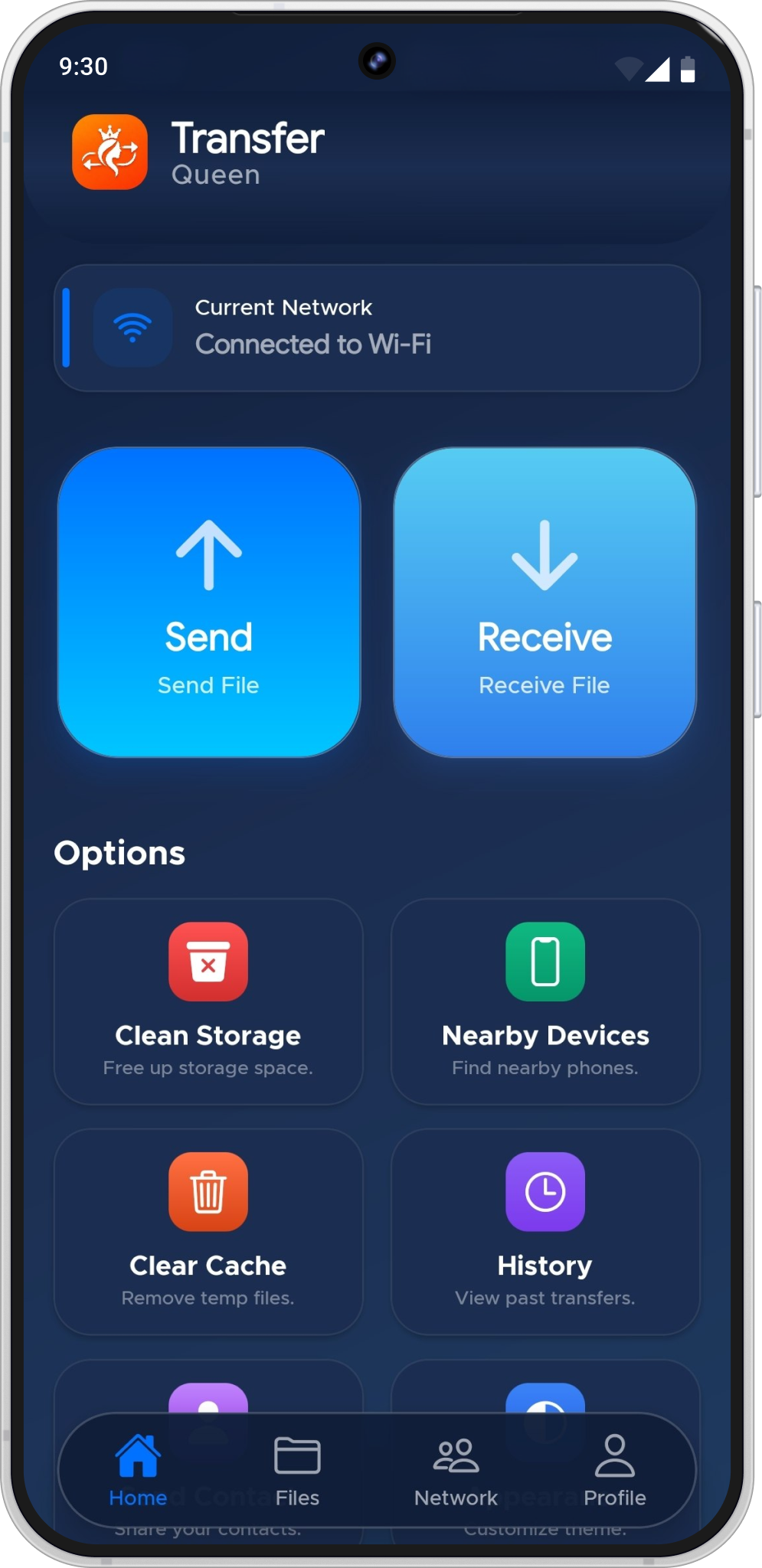
Photo transfer questions
A direct device-to-device connection, which is what TransferQueen uses, skips the upload-then-download round trip that cloud services require — the photos move straight from one device's storage to the other's.
Connect your iPhone and Android phone in TransferQueen, select the photos on the iPhone, and send — the same process as the reverse direction.
TransferQueen connects devices directly rather than routing through a cloud service, which avoids the re-compression that some upload/download services apply to save bandwidth. Exact output quality depends on the original file.
Yes, you can select multiple photos in a single transfer session. Neither store listing publishes an exact limit on how many at once.
Transfer Your Photos
Free on Google Play and the App Store.
Listed as "TransferQueen: Photo Share App" on the App Store.