ANDROID TO IPHONE FILE TRANSFER
TransferQueen is a free file transfer app built for Android to iPhone transfer and iPhone to Android transfer — send photos, videos, contacts and large files directly, with no cables and no cloud.
Listed as "TransferQueen: Photo Share App" on the App Store.
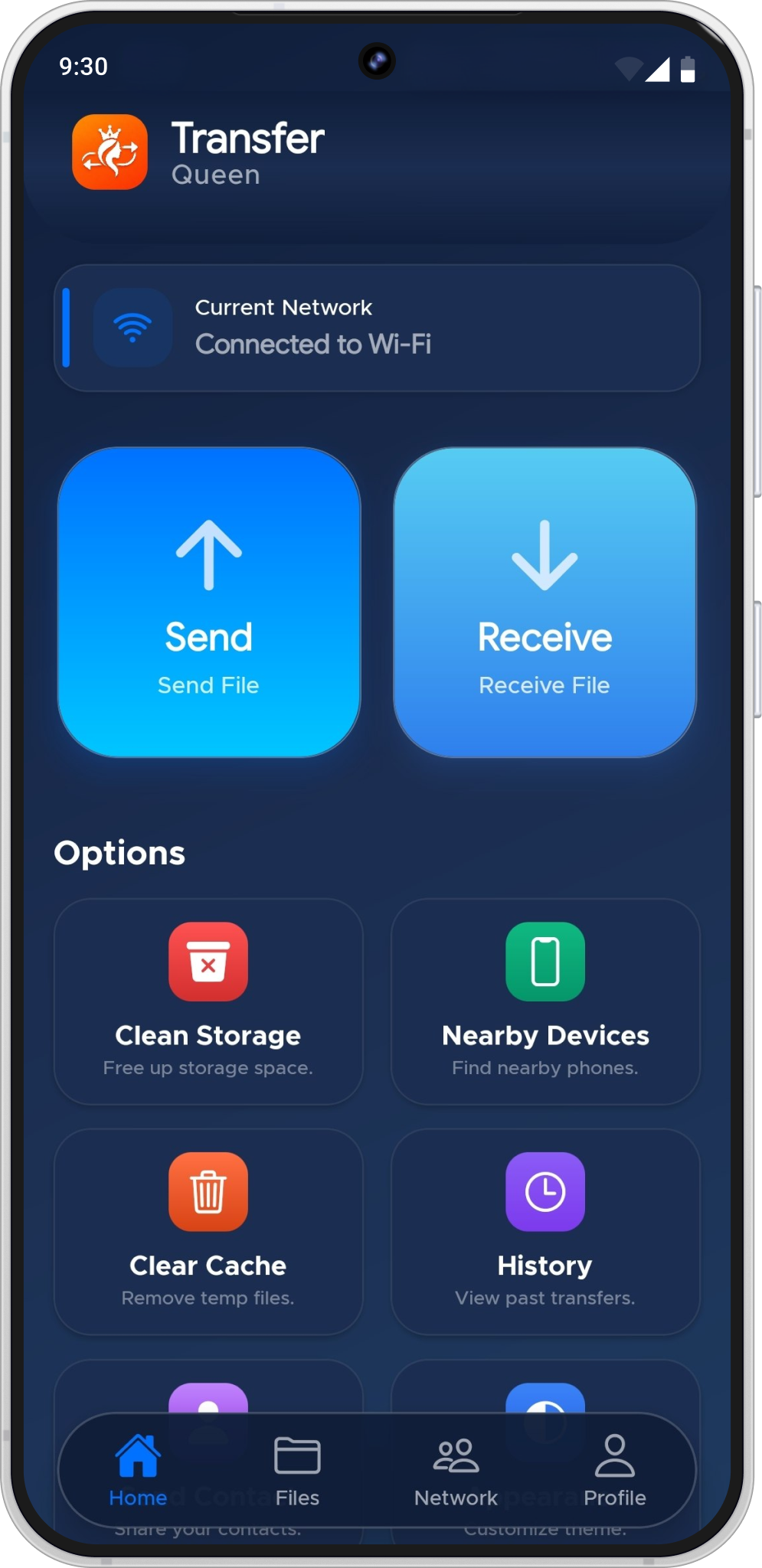
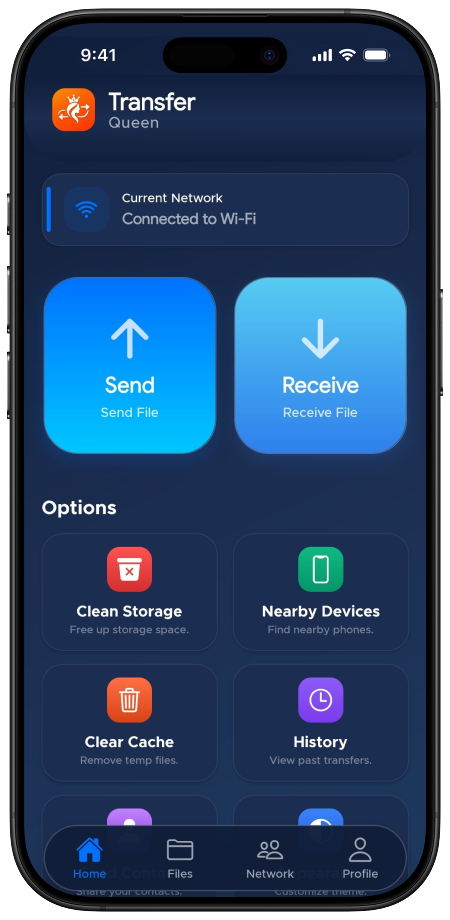
Screens recreated from TransferQueen's verified Google Play and App Store listings.
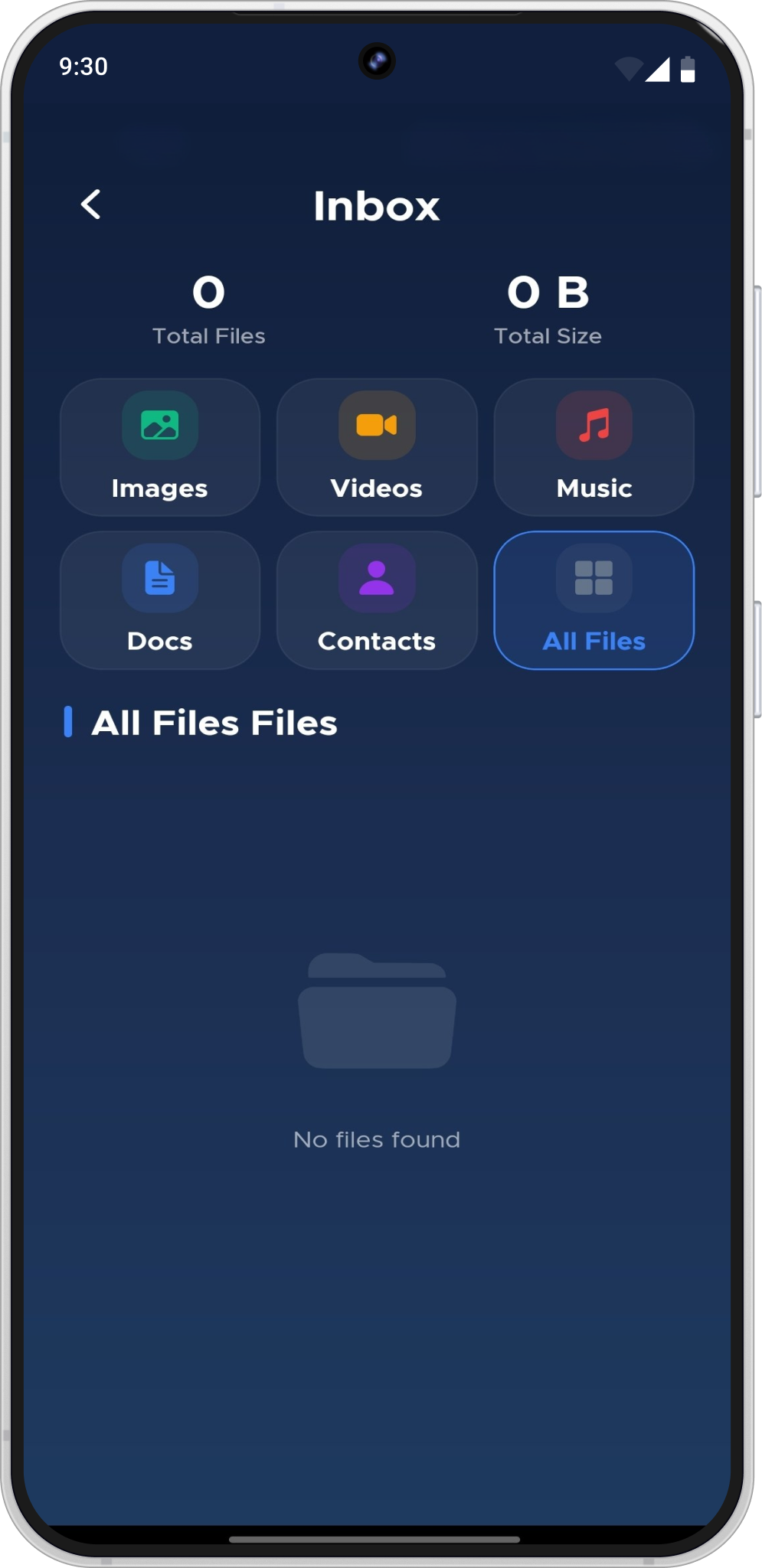
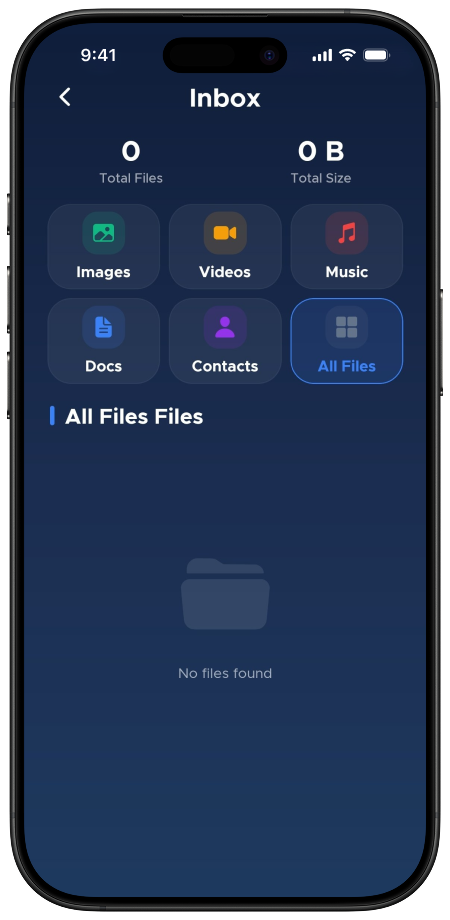
Every file type listed on TransferQueen's store pages, ready for Android to iPhone transfer or the reverse.
Photos
Transfer photos from Android to iPhone (or the other way) without a cloud upload.
Videos
Send large files and full-quality video with no compression.
Documents
Move files you need for work or school.
PDF files
Share PDFs the same way as any other file.
Contacts
Transfer contacts from Android to iPhone before you switch phones for good.
Android to iPhone transfer, iPhone to Android transfer, or same-platform phone to phone transfer — TransferQueen covers all four.
Everything TransferQueen was built to skip.
No account setup to dig through. Open the app, connect, pick your files, send.
Install TransferQueen (Android) or "TransferQueen: Photo Share App" (iPhone) and open it on both devices.
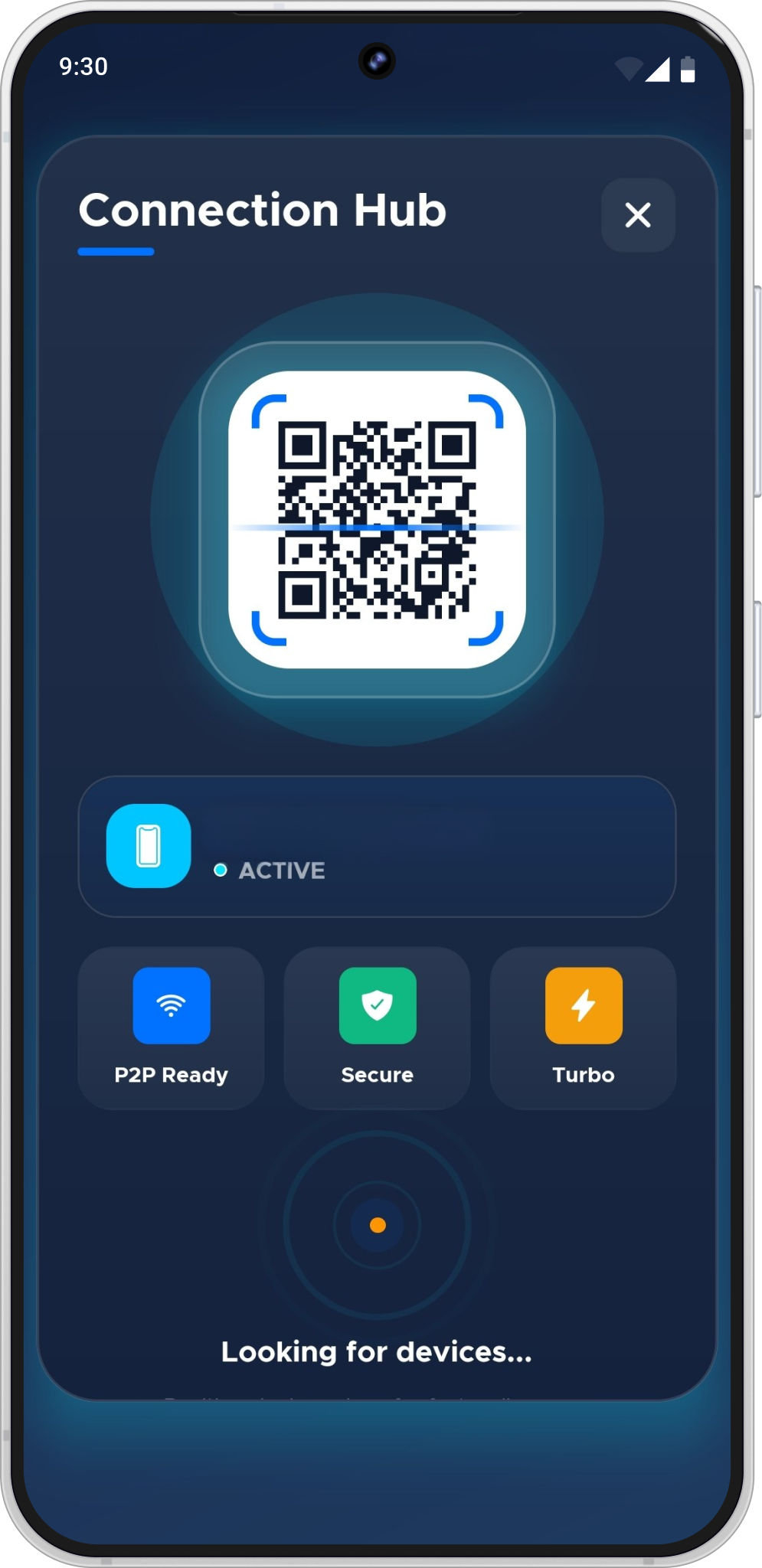
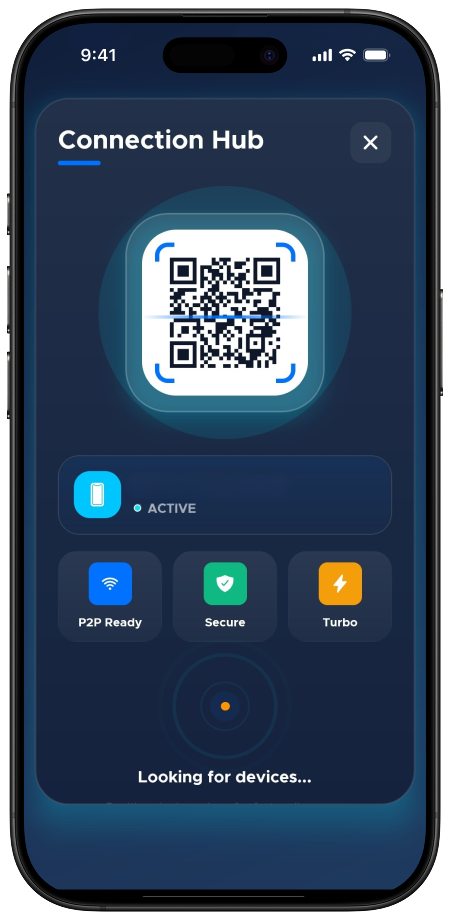
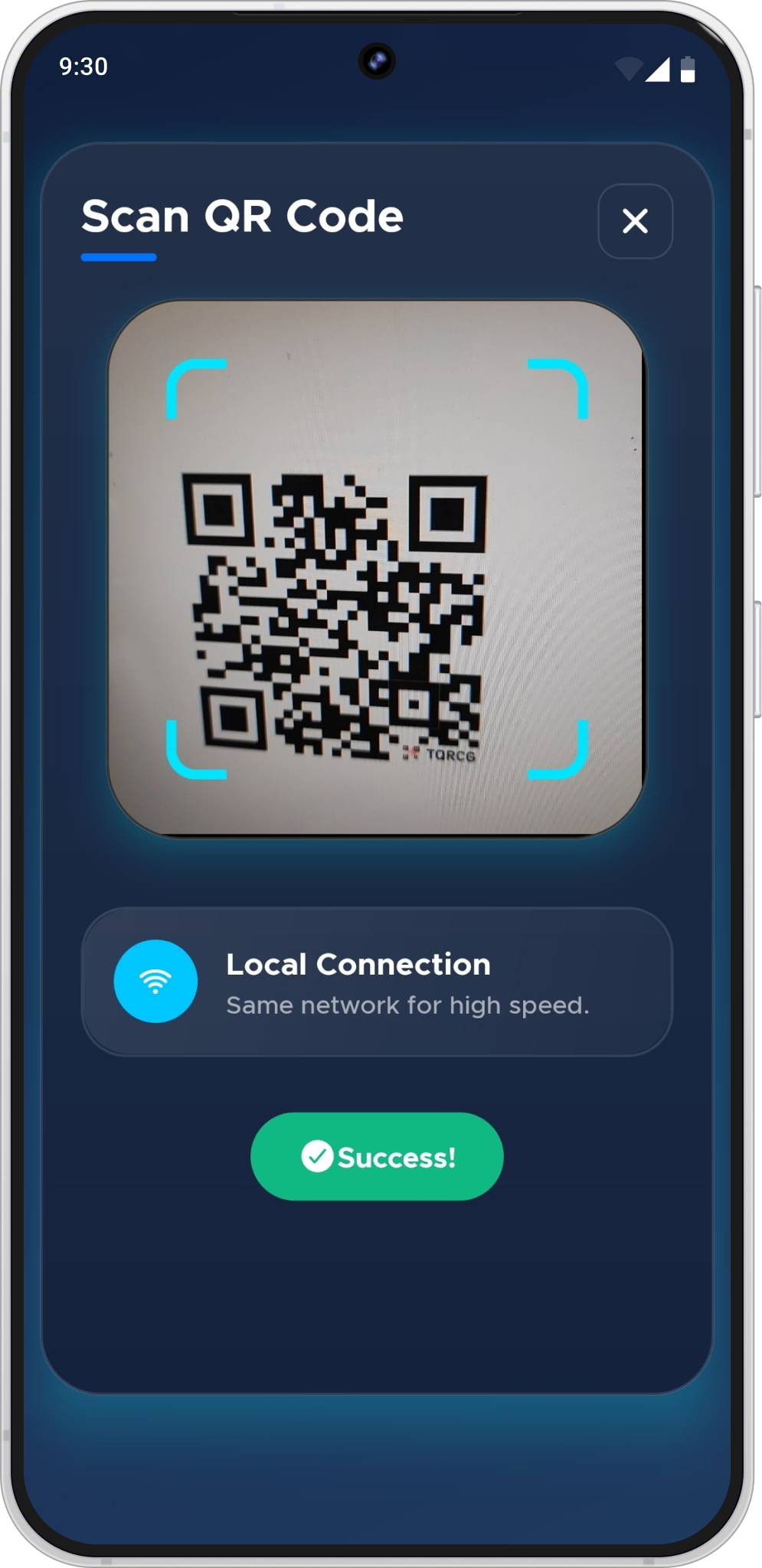
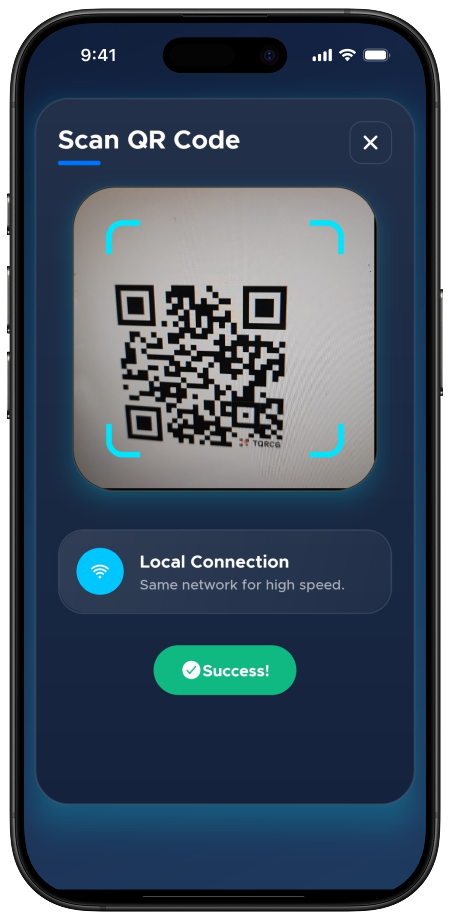
Connect over Wi-Fi using Nearby Discovery to find a compatible device close by, or scan a QR code to pair directly.
Choose photos, videos, documents, PDFs, contacts, or other supported files from your device.
Send your files. The connection is direct between devices, so nothing needs to pass through mobile data or a cloud upload.
Recreated from TransferQueen's real Google Play and App Store listings.
Fast file sharing across devices
No internet needed
Send or receive
Works across devices
Safe and private
Simple to use
Search for a file transfer app and most results split cleanly along platform lines: Android phones lean on Nearby Share or a USB cable to a computer, iPhones use AirDrop, and neither one talks to the other. That gap is the entire reason Android to iPhone transfer and iPhone to Android transfer show up as their own search terms — the built-in tools on both platforms simply don't cover it.
Google's own "Android File Transfer" tool is built for browsing an Android phone's storage from a Mac over USB — useful, but it's a desktop utility, not a phone-to-phone option. TransferQueen is built specifically as a file sharing app that works phone to phone: open it on both devices, connect over Wi-Fi, and send without a cable or a computer in between.
This is one of the most common reasons people look for this kind of app in the first place. To transfer photos from Android to iPhone (or the reverse, to transfer photos from iPhone to Android), connect both devices in TransferQueen, select the photos, and send — no cloud upload, no cable, and no compression along the way.
Email attachments and free cloud storage tiers both cap out fast, which is exactly where people start searching for how to send large files another way. Because TransferQueen connects two devices directly, a large video isn't fighting an upload queue or a compression pass — it just moves from one phone to the other.
A phone switch usually isn't only about photos. TransferQueen also handles the rest of what "transfer data from Android to iPhone" usually means in practice: contacts, PDFs, documents and audio files, so you can transfer contacts from Android to iPhone (or from iPhone to Android) in the same session as everything else.
Cross-platform transfer gets most of the attention, but a new Android phone still needs your old photos, and a new iPhone still needs your old contacts. TransferQueen supports phone to phone transfer in all four directions — Android to iPhone, iPhone to Android, Android to Android and iPhone to iPhone — through the same connect-select-send flow described above.
Yes. iPhone users install "TransferQueen: Photo Share App" from the App Store — a separate listing from the Android app, published by the same developer, that connects with the Android app to complete a transfer.
Open TransferQueen on your Android phone and "TransferQueen: Photo Share App" on your iPhone, connect the two devices, choose the photos, videos, documents, PDFs or contacts you want to send, then start the transfer.
Photos are one of TransferQueen's supported file types — connect your Android phone and iPhone in the app, select the photos you want to send, and start the transfer.
Yes, video is one of the file types TransferQueen is built to share between Android and iPhone.
Yes, contacts are listed as a supported file type for transfer between devices.
Yes, Android-to-Android transfer is one of the four supported directions.
Yes, iPhone-to-iPhone transfer is one of the four supported directions.
Yes. TransferQueen supports transfers in both directions — Android to iPhone and iPhone to Android.
No. TransferQueen connects devices directly over Wi-Fi, using Nearby Discovery or QR code pairing, rather than requiring a USB cable.
No. TransferQueen is built to transfer files without an internet connection, connecting two nearby devices directly instead of routing through the web.
No. TransferQueen connects devices directly rather than uploading your files to cloud storage first — your files stay on your devices.
The store listings do not describe an account or sign-up step as part of using the app. This is noted for verification with the product team before being stated as a guarantee.
Flagged for product-team verification
Photos and images, videos, music and audio files, documents, PDF files, contacts, and other supported files.
Yes. Because TransferQueen connects two devices directly instead of uploading to a server, it avoids the file-size and upload-speed limits that come with sending large files through email or cloud storage. The Play Store listing does not publish a specific file-size cap.
Yes. Switching phones is one of TransferQueen's core use cases — connect your old Android phone and new iPhone (or the reverse) and bring your photos, videos, documents and contacts across in one session.
Download TransferQueen and make your next phone-to-phone transfer simpler.
Listed as "TransferQueen: Photo Share App" on the App Store.
 TransferQueen